 Tasksfor Pebble
Tasks for Pebble
Say a list. Get it on your wrist.
Tell your iPhone or your Pebble what you’re planning. Tasks writes the whole list, and you check it off on your watch.
Came here from your watch? Install Tasks on this iPhone and open it. Then press SELECT on the watch and type the code it shows in Tasks › Settings › Pebble.
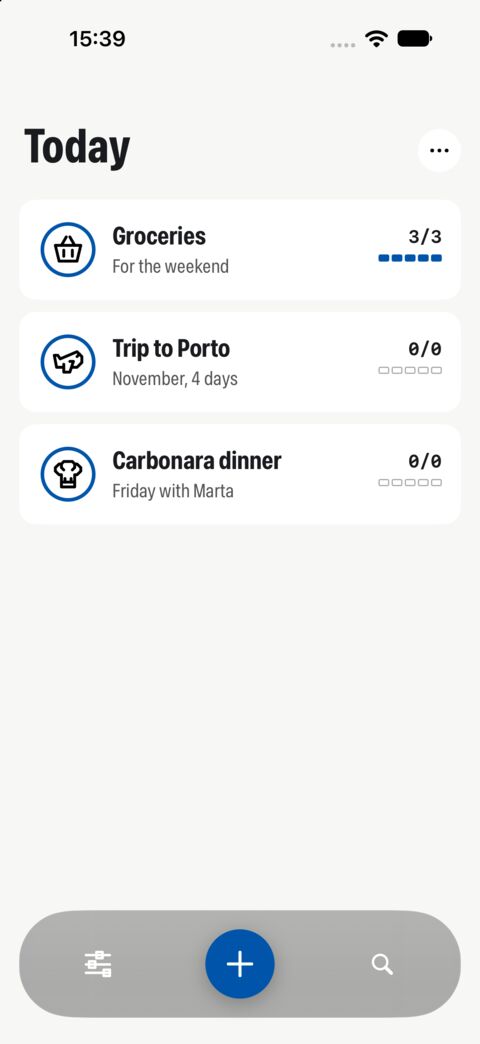
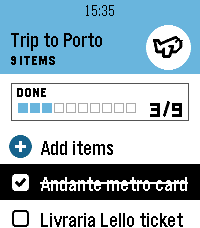
- Say it
- Check it off
- Same lists on both
Say what you’re planning. Get the whole list.
No typing item by item. Describe the trip, the dinner or the week, and Tasks writes the list, sorted into sections, with a colour and an icon to match.
Packing for a week in Porto with our baby
- On the watchSelect “+ New list” and speak.
Inside a list, “+ Add items” adds to it instead.
- On the iPhoneHold the + button and speak.
Say the items (“milk, eggs and two lemons”) and you get exactly those. Describe a goal and you get what it needs.
- Already started?Autocomplete fills the gaps.
Open a list on the iPhone and let Tasks add what it’s missing, without repeating what’s there.

Porto with the baby
16 items
Documents
- Passports
- Baby’s passport
- European health cards
Baby
- Travel cot
- Baby carrier
- Nappies for a week
- Sun hat
Clothes
- Rain jacket
- Walking shoes
- Warm layers for the evenings
Porto
- Andante cards
- Livraria Lello tickets
- Port cellar tour
- Tram 1 to Foz
- Pastéis de nata
- Douro Valley day trip
-
01Speak after the toneThe watch listens through the Pebble app’s dictation.
-
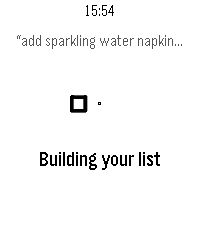
02Building your listA few seconds while Tasks turns your words into items.
-
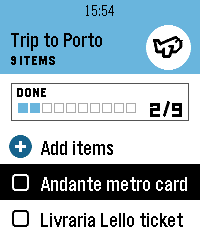
03It’s on your wristAnd on your iPhone. Changed your mind? BACK right away undoes it.
Leave the phone in your pocket.
At the shop, on the platform, with a baby on your arm: your list is on your wrist. Three buttons are all it takes.
- Up / DownMove through your lists and items.
Each list shows its icon, its colour and how much is done.
- SelectOpen a list, check an item off.
Select again to bring it back. The count and the squares update as you go.
- Hold SelectThe list menu.
Change its colour or icon, clear the done items, or delete the list.
- BackBack out, or undo.
Right after you make a list by voice, Back undoes it.
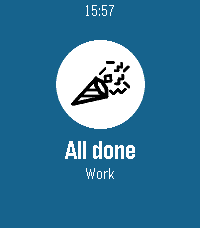
One set of lists, on your iPhone and your watch.
Link the watch once. From then on, whatever you do on one shows up on the other: new lists, new items, check-offs, colours and icons.
| Time | From | What | Status |
|---|---|---|---|
| 15:35 | Watch | Checked off “Andante metro card” | On iPhone |
| 15:36 | iPhone | Added “Rain jacket” to Trip to Porto | On watch |
| 15:38 | Watch | Said “add sparkling water and napkins” | 2 added |
| 15:41 | Watch | Checked off “Oat milk”, phone out of reach | Waiting |
| 15:44 | Watch | Phone back: “Oat milk” sent | On iPhone |
- Link onceA six-character code, typed once.
Open Tasks on the watch, press Select, and type the code in Tasks › Settings › Pebble on your iPhone.
- Both waysEdit wherever you are.
Lists made on the watch appear on the iPhone, and the other way round.
- No signalCheck-offs wait for you.
If your phone is out of reach, the watch keeps what you checked off and sends it when the phone is back.
- Re-syncOne press to refresh.
Hold Select on the lists and choose Re-sync to fetch everything again.
Made for the new Pebbles.
Tasks is drawn for each screen: colour on the rectangle, lists that follow the curve on the round one, and crisp black and white on the Duo.
-
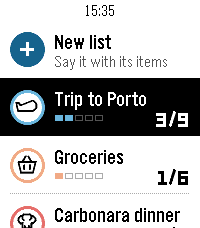
Pebble Time 2
- Screen
- 200 × 228
- Colour
- 64 colours
-
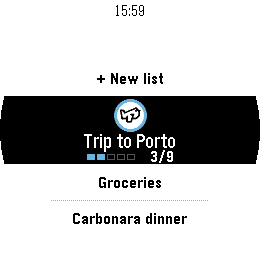
Pebble Round 2
- Screen
- 260 × 260, round
- Colour
- 64 colours
-
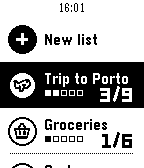
Pebble 2 Duo
- Screen
- 144 × 168
- Colour
- Black and white
Nine icons, six colours, one look.
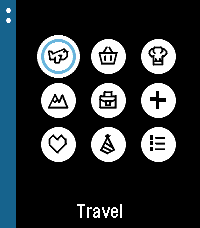
Every list gets an icon and a colour, picked for you when you speak it and easy to change on either device. The icons move, like they do on the watch.
- Travel
- Groceries
- Cooking
- Outdoors
- Work
- Health
- Personal
- Celebration
- List
- Cobalt#0055AA
- Picton blue#55AAFF
- Midnight green#005555
- Chrome yellow#FFAA00
- Orange#FF5500
- Candy red#AA0000


Seven app icons for your home screen, in the same colours.







Try it free. Then monthly or yearly.
Tasks is one subscription that covers the iPhone app and the watch app. Start with a free trial and decide when it ends.
-
Free trial
Everything included. Nothing is charged until the trial ends, and you can cancel before then.
-
Monthly
Renews every month. Cancel whenever you like.
-
Yearly
Renews every year. One payment covers the whole year.
- Lists by voice on the iPhone and the watch
- Autocomplete for lists you’ve started
- The watch app for Pebble Time 2, Round 2 and 2 Duo
- Sync between your iPhone and your watch
- All icons, colours and app icons
- No ads, ever
Prices vary by country: the App Store shows yours, in your currency, before you subscribe. Payment is handled by Apple. Cancel any time in your Apple ID’s subscription settings or from Tasks › Settings. Voice lists have a fair-use limit of 50 a day. Subscription terms.
Good to know
Which watches does it work with?
Pebble Time 2, Pebble Round 2 and Pebble 2 Duo. Each has its own layout: colour on the Time 2 and the Round 2, black and white on the Duo. Older Pebbles aren’t supported.
Do I need an iPhone?
Yes. Your lists live in the Tasks app on your iPhone, the subscription is bought there, and the watch reaches Tasks through the Pebble app on your phone. There’s no Android version.
You can use the iPhone app on its own, without a watch.
How do I link my watch?
- Install Tasks on your iPhone and start the free trial.
- Install the Tasks watch app from the Pebble app store.
- Open Tasks on the watch. It shows a QR code that leads here; press SELECT and it shows a 6-character code.
- On the iPhone, open Tasks › Settings › Pebble, type the code and tap Link watch.
Each code works once and lasts 10 minutes. If it has expired, go back on the watch and press SELECT for a new one. More help.
Which languages does it speak?
English, Spanish and Catalan. The iPhone app is in all three. Say a list in any of them and it comes back in the language you spoke, whatever your phone is set to. The watch app’s menus are in English.
What happens to my lists if I cancel?
Nothing is deleted. Your lists stay on your iPhone. Tasks needs an active subscription to open, so you’ll see them again as soon as you resubscribe. The watch shows “Subscribe on your iPhone” until then.
If you’d rather remove everything, delete the app, and ask us to delete the copy kept for your watch.
Does it work without a connection?
On the iPhone, your lists are stored on the phone and work offline. Making lists by voice needs a connection.
The watch needs its phone nearby, with internet, to fetch lists. Check-offs made while it can’t reach the phone are kept and sent when it’s back.
What happens to what I say?
Your speech is turned into text by Apple’s speech recognition on the iPhone, or by the Pebble app’s dictation on the watch. Only the text reaches us, and it’s sent to OpenAI to build the list. We don’t keep your recordings or transcripts. No ads, no selling data. The privacy policy has the details.
Your next list is one sentence away.
Get Tasks on your iPhone, then add the watch app.